macOS App
A native menu bar app for managing your local AI sessions and plans. It provides the same push, sync, and management features as the CLI, with auto-sync and a visual interface.
Install
- Download the DMG
- Open the DMG and drag RockstarNinja to your Applications folder
- Launch from Applications — the app appears in your menu bar as a shuriken icon (no dock icon)
Requires macOS 14 (Sonoma) or later.
First launch
If you haven't used the CLI before, the app runs an onboarding flow:
- Generates an Ed25519 keypair at
~/.rn/private.keyand~/.rn/public.key - Creates a default config at
~/.rn/config.toml - Registers your public key with the server
If you already have a CLI setup, the app uses your existing keys and config — no extra setup needed.
Features
Session browser
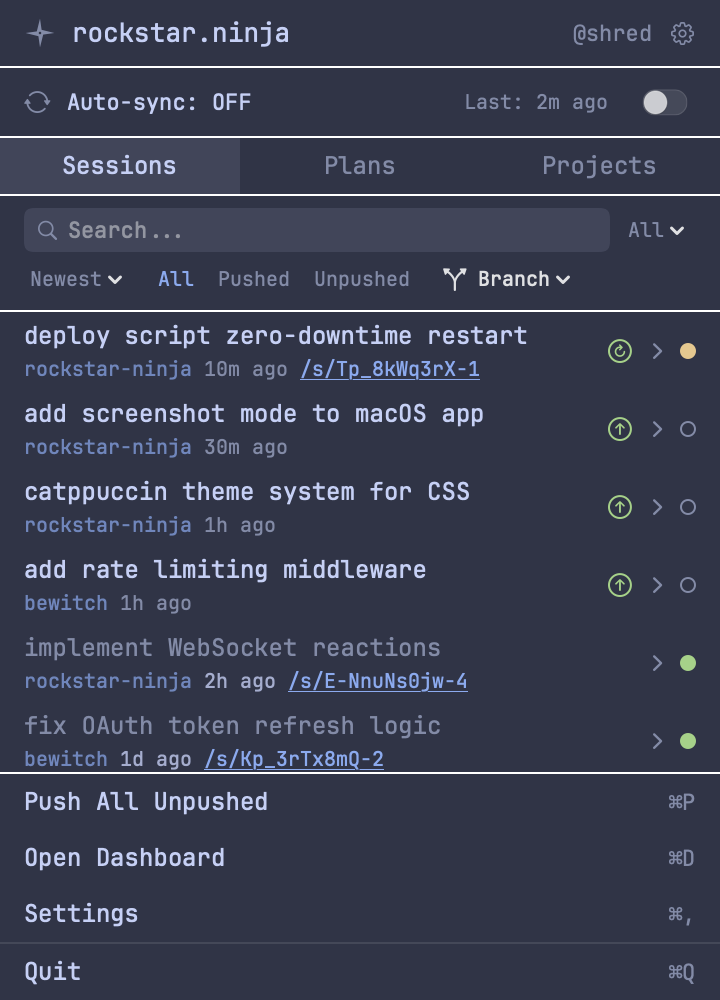
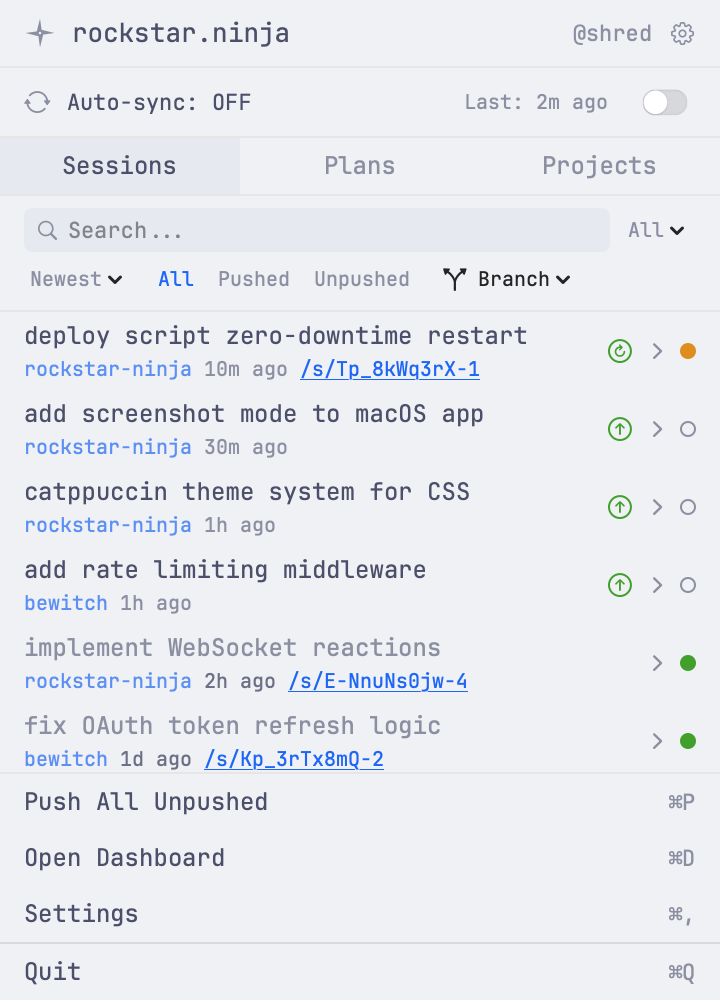
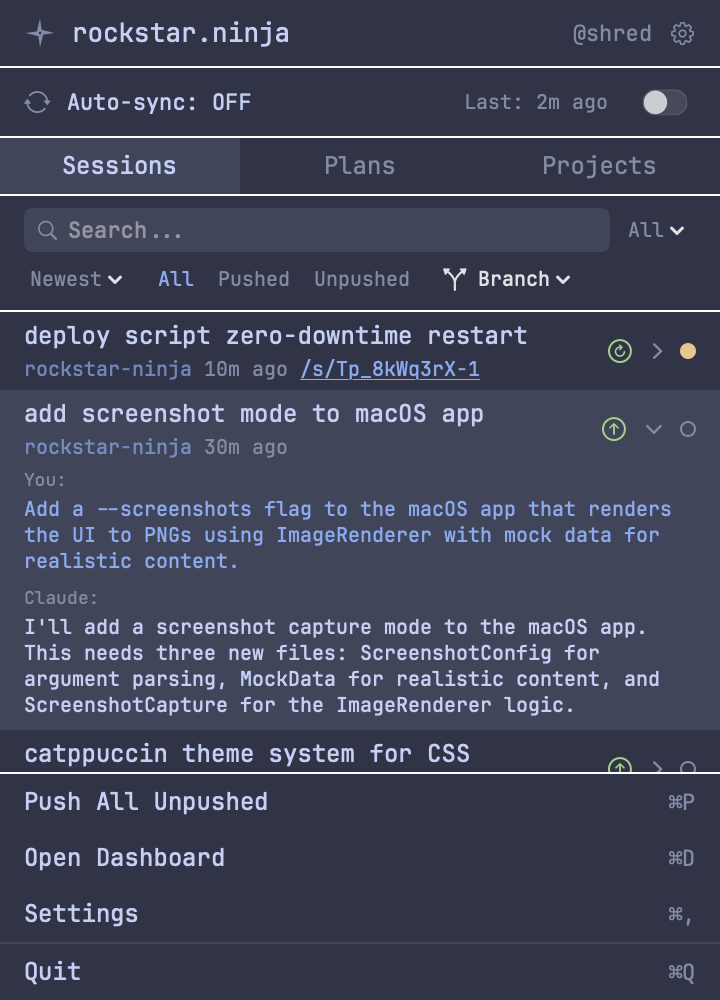
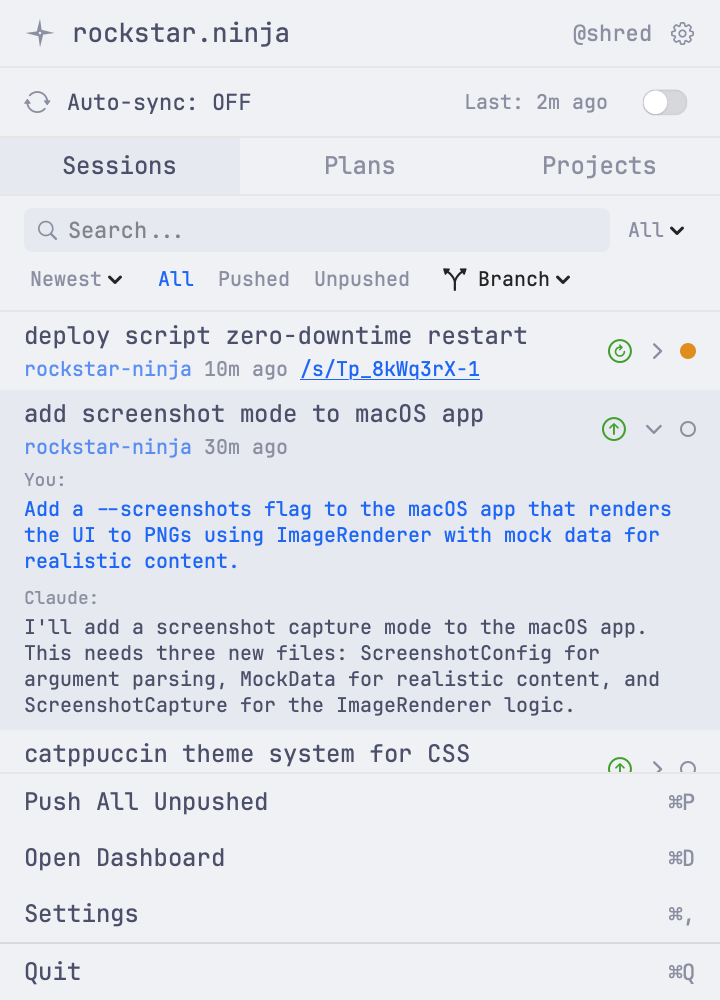
Sessions (Claude and Copilot) are grouped by project and sorted by date. Click a session to expand its preview, showing the first prompt and assistant response. Each session shows its turn count, file size, and git branch (when available). During startup, skeleton loading rows are shown while sessions are being discovered and remote state is fetched.
Plan browser
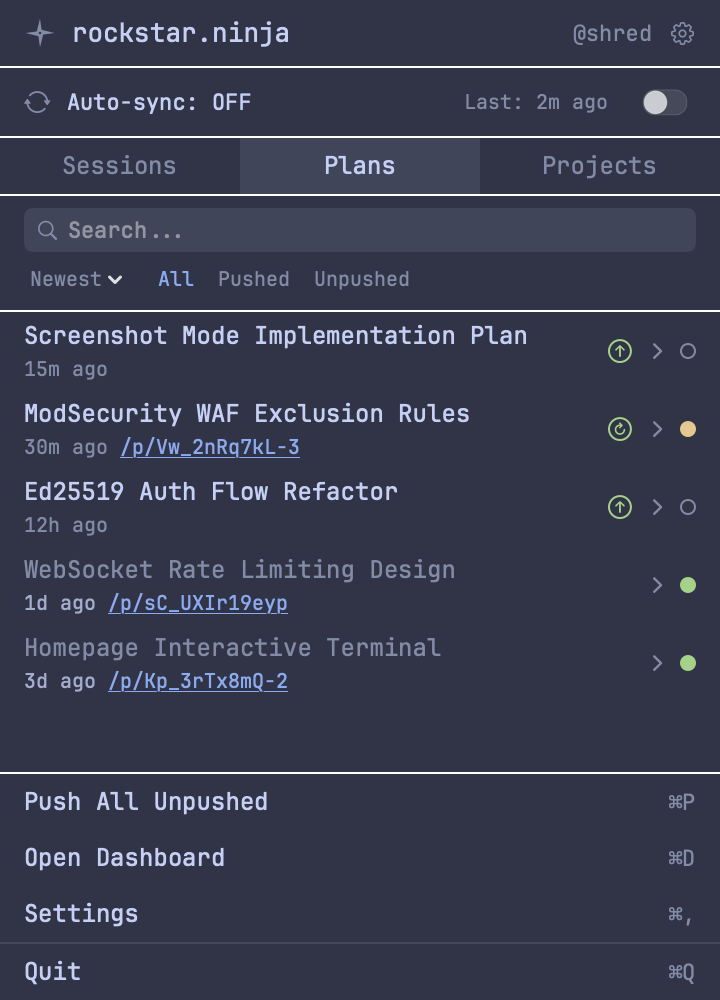
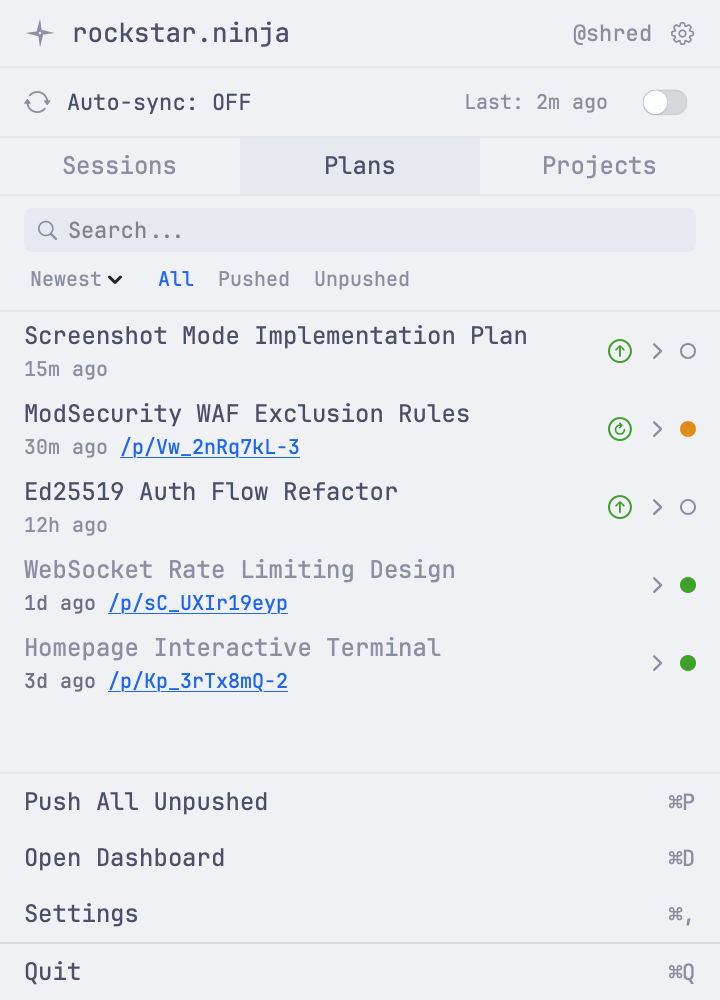
Plans are listed with their slug names, dates, and sizes. Click to expand a preview of the plan content.
Project browser
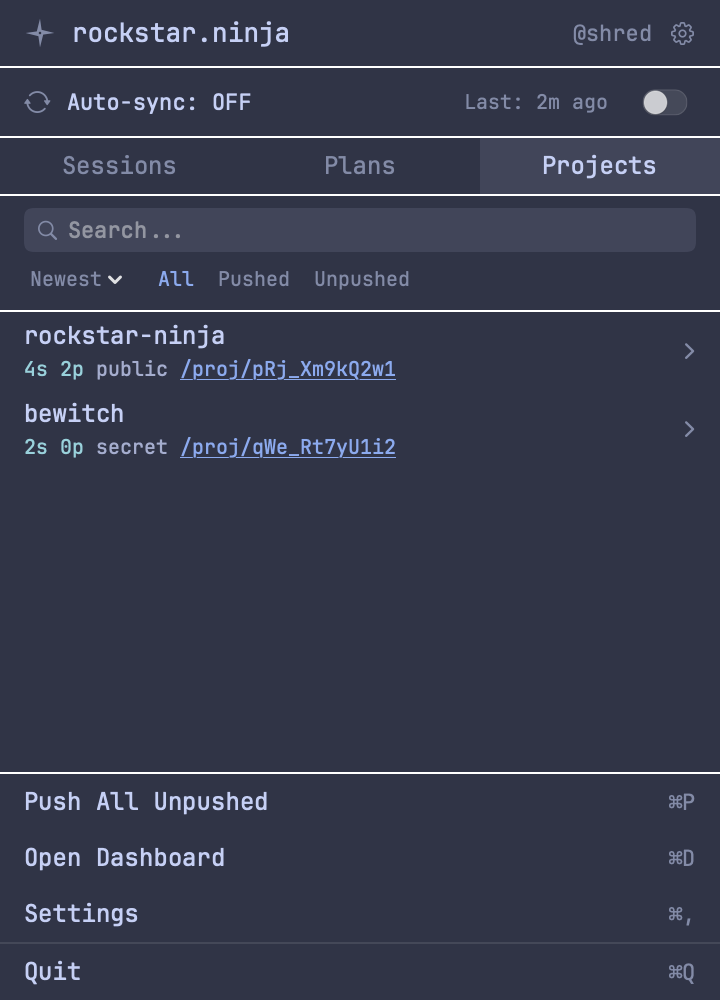
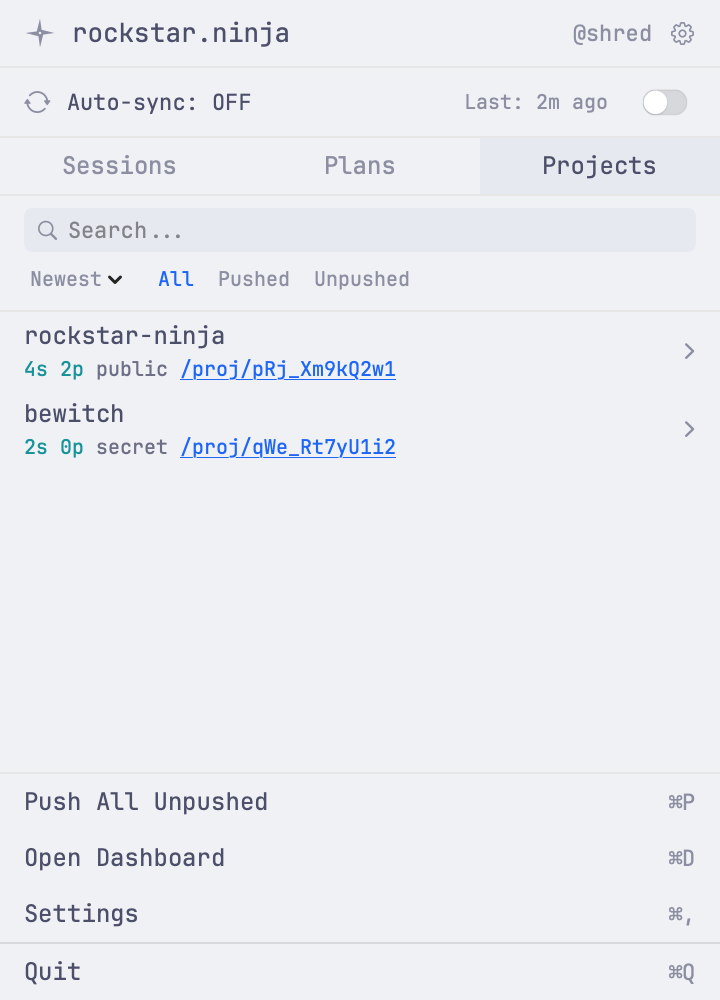
Projects are listed with their label, privacy level, and session/plan counts. Projects are automatically created when you push sessions — the project label is derived from your local project directory name. Click a project to expand its details.
Push and update
Push any session or plan with a single click. Unsynced items show a green push button; items that have changed locally since the last push show an update button instead.
- Push new sessions and plans to rockstar.ninja
- Update previously pushed items — creates a new version while keeping the same URL
- Set privacy level (public, secret, or private)
- Set a title and expiration
Stale items (synced but locally modified) are indicated with a yellow sync dot so you can see at a glance what needs updating.
Search and filter
Use the search bar to filter sessions and plans by name. The project picker lets you scope session results to a specific project.
Auto-sync
Toggle auto-sync from the sync status view. When enabled, the app watches ~/.claude/ and VS Code's workspace storage for changes using FSEvents, then automatically pushes new or modified sessions and plans in the background. Pushes run concurrently (up to 4 at a time) for faster sync.
The app syncs on launch — sessions and plans are ready by the time you first open the popover. A full sync cycle (local scan + remote refresh) also runs every 120 seconds, so changes made via the CLI or on another machine appear within a couple of minutes. The shuriken icon spins during the entire sync cycle.
Use the Sync Now button to trigger a sync manually at any time, even when auto-sync is off.
Notifications
The app sends macOS notifications with per-item detail when syncs complete — you'll see which sessions and plans were pushed, not just a count. Notification preferences are in Settings:
- Successful pushes — notify when items are synced (on by default)
- Push errors — notify when sync fails (on by default)
Settings
Access Settings from the gear icon in the popover footer. The settings window has sections for:
- Account — fingerprint, username, profile URL
- Defaults — default privacy and expiration for sessions and plans
- Providers — enable/disable Claude Code and Copilot session discovery
- Notifications — success and error notification toggles
- Redaction — view configured redaction rules
- Data Export — request, check status, download, or delete a data export (see rn account export)
- Account Destruction — permanently delete your account
Configuration
The app reads ~/.rn/config.toml — the same config file used by the CLI. Changes to the config are picked up automatically.
Key settings:
server— the server URL (default:https://rockstar.ninja)[session]/[plan]— default privacy, expiration[[redact]]— client-side redaction rules applied before upload
See Configuration for the full reference.
CLI comparison
| Feature | CLI | macOS App |
|---|---|---|
| Push sessions | rn session push |
Click push button |
| Update sessions | rn session push (again) |
Click update button |
| Push plans | rn plan push <name> |
Click push button |
| Browse projects | rn project list |
Projects tab |
| Sync all | rn session sync |
Auto-sync toggle |
| Concurrent sync | -j flag (default: 4) |
Built-in (4 workers) |
| List/browse | rn session list |
Visual browser |
| Search/filter | CLI flags | Search bar + project picker |
| Background operation | No | Yes (menu bar) |
| File watching | No | Yes (FSEvents) |
| Notifications | No | Yes (macOS notifications) |
| Data export | rn account export ... |
Settings > Data Export |
| Auth | Same keypair | Same keypair |
| Config | Same ~/.rn/config.toml |
Same ~/.rn/config.toml |